Set up and customize the Quickly Booked app for easy and efficient appointment management.
In Quickly Booked App, the “Company Days Off” feature allows you to manage and designate specific days when your business will be closed or unavailable for appointments. This feature is essential for ensuring accurate scheduling and preventing customers from booking appointments on days when your business is not operational.
With Company Days Off, you can easily mark holidays, special events, or any other occasions when your business will not be accepting appointments. This helps in maintaining a clear and reliable schedule for both your team and your customers.
For instance, let’s say your business will be closed for a national holiday on December 25th. You can mark this day as a Company Day Off, which will automatically block the entire day from being available for appointments. This prevents any bookings on that day.
In Quickly Booked App, the “Company Days Off” feature allows you to manage and designate specific days when your business will be closed or unavailable for appointments. This feature is essential for ensuring accurate scheduling and preventing customers from booking appointments on days when your business is not operational.
With Company Days Off, you can easily mark holidays, special events, or any other occasions when your business will not be accepting appointments. This helps in maintaining a clear and reliable schedule for both your team and your customers.
For instance, let’s say your business will be closed for a national holiday on December 25th. You can mark this day as a Company Day Off, which will automatically block the entire day from being available for appointments. This prevents any bookings on that day.
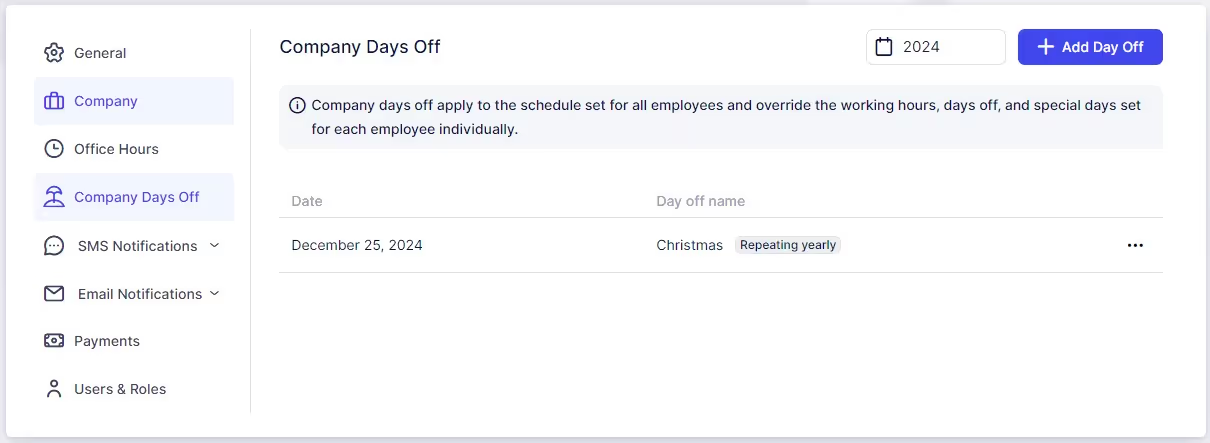
To manage and add your Company Days Off, access the Settings page located in the bottom left corner of your Admin section in Quickly Booked App. Initially, there won’t be any days off set up. To add new days off, click the “+ Add Day Off” button.
In the popup that appears, define the name of the day off, specify a single date by double-clicking the date or a date range by selecting the start and end dates. You can also choose whether the day off will be repeated every year. If you enable the option for the day off to repeat, you can select how many years it will repeat, ranging from 1 to 20 years.
After adding a Company Day Off, you will see it in the overview. To make changes, you can either delete or edit it by clicking the three-dots menu located on the right of the Day Off entry.
Please Note: If you have configured a day off to repeat, please be aware that you will not be able to modify this setting afterward. If you mistakenly set a day off to repeat, you will need to delete it and create a new one with the correct settings.
Got questions? We’ve put together clear answers to help you get started with confidence.

All plans include unlimited staff members, services, and locations. There are no per-user or per-location fees and no upgrade required as you grow. Everything is included from day one.

Yes. You can collect deposits, full payments, or partial payments for any service. You decide the amount clients pay upfront, and the rest can be charged later or at the appointment.



