Manage bookings, clients, and settings efficiently from a centralized admin dashboard.
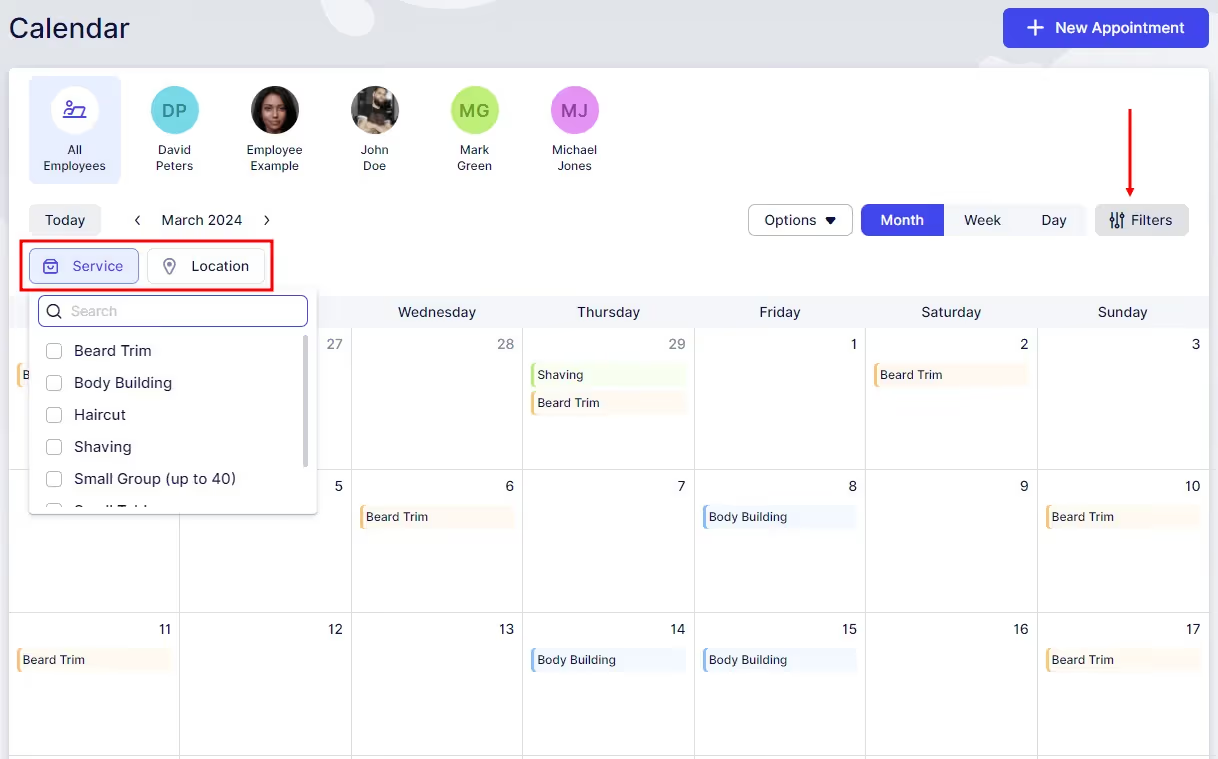
On the Calendar page, you can monitor scheduled appointments for each or all employees in a monthly, weekly, or daily calendar view. By default, all employees’ appointments are displayed, but you can easily filter to view appointments assigned to a specific employee, or a certain number of employees by clicking on their picture(s) at the top of the calendar.
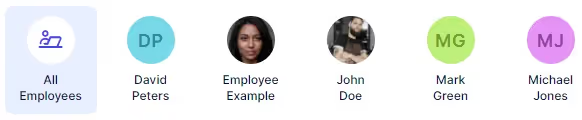
Please Note: If an employee does not have any appointments booked, they will not be visible in the Calendar section.
By clicking on “Filters” in the upper right corner, options to filter per “Service” and “Location” will appear.
Selecting one or more services or locations, your calendar will list the appointments associated with those selections. This feature enhances visibility and makes it easier to check your appointments for the day, week, or month.
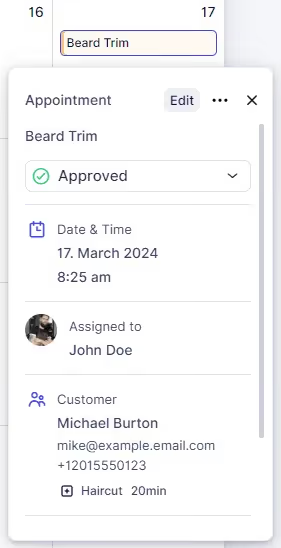
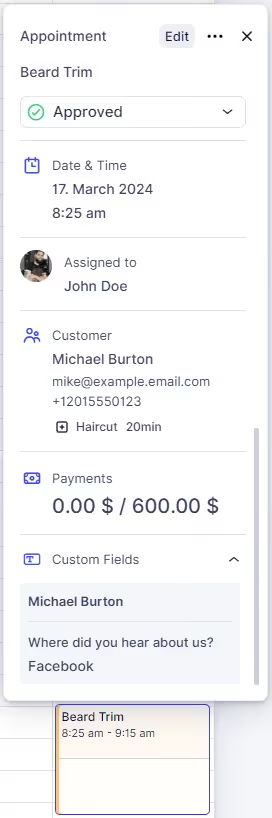
On the Calendar page, you have the ability to adjust the status of appointments as needed. When you click on a specific appointment in the calendar, a popover will display essential details including the service name, options to change the status, date and time, customer name, employee name, and customer details. This functionality streamlines the process of managing your appointment statuses.
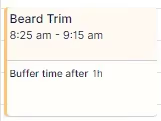
Once an appointment is booked, it will be displayed on the calendar. If the service has buffer times before and/or after, these times will be highlighted with a specific color and label on the calendar, indicating it as buffer time. This feature is crucial for understanding the actual availability of an employee. Sometimes an appointment might be scheduled for 1 hour, but with buffer time, the employee could be unavailable for a longer period. This ensures you can accurately assess an employee’s availability before and after each appointment. It’s particularly helpful to avoid confusion when attempting to schedule additional appointments during these times.
The time slots displayed on the calendar are based on the Default Time Slot Step selected in the General Settings, with the default set to 30 minutes.
When viewing an appointment card on the calendar, you’ll see the customer’s full name, the service name, and the start and end times of the appointment, including any additional extras and the selected duration.
Clicking on an appointment in the calendar will open a popup through which you can click on the “Edit” button and edit the appointment. Clicking on the three-dots menu will provide you with the options to duplicate or delete the appointment, while the card itself expands below these two options, providing more details:
Apart from viewing appointment details on the calendar, you can navigate to different dates by changing the month, week, or day to view appointments accordingly. Clicking “Today” will quickly bring you back to the current week, ensuring you stay updated.
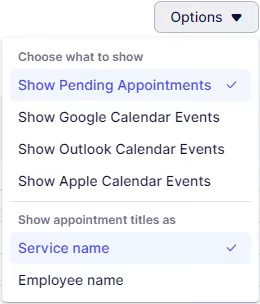
Under “Options,” you have the ability to customize which events are displayed on your calendar:
Additionally, you can choose whether your calendar displays the service name or the name of the assigned employee for each appointment. This customization allows you to tailor the calendar view to your preferences.
Got questions? We’ve put together clear answers to help you get started with confidence.

All plans include unlimited staff members, services, and locations. There are no per-user or per-location fees and no upgrade required as you grow. Everything is included from day one.

Yes. You can collect deposits, full payments, or partial payments for any service. You decide the amount clients pay upfront, and the rest can be charged later or at the appointment.



